
Domains
Domains
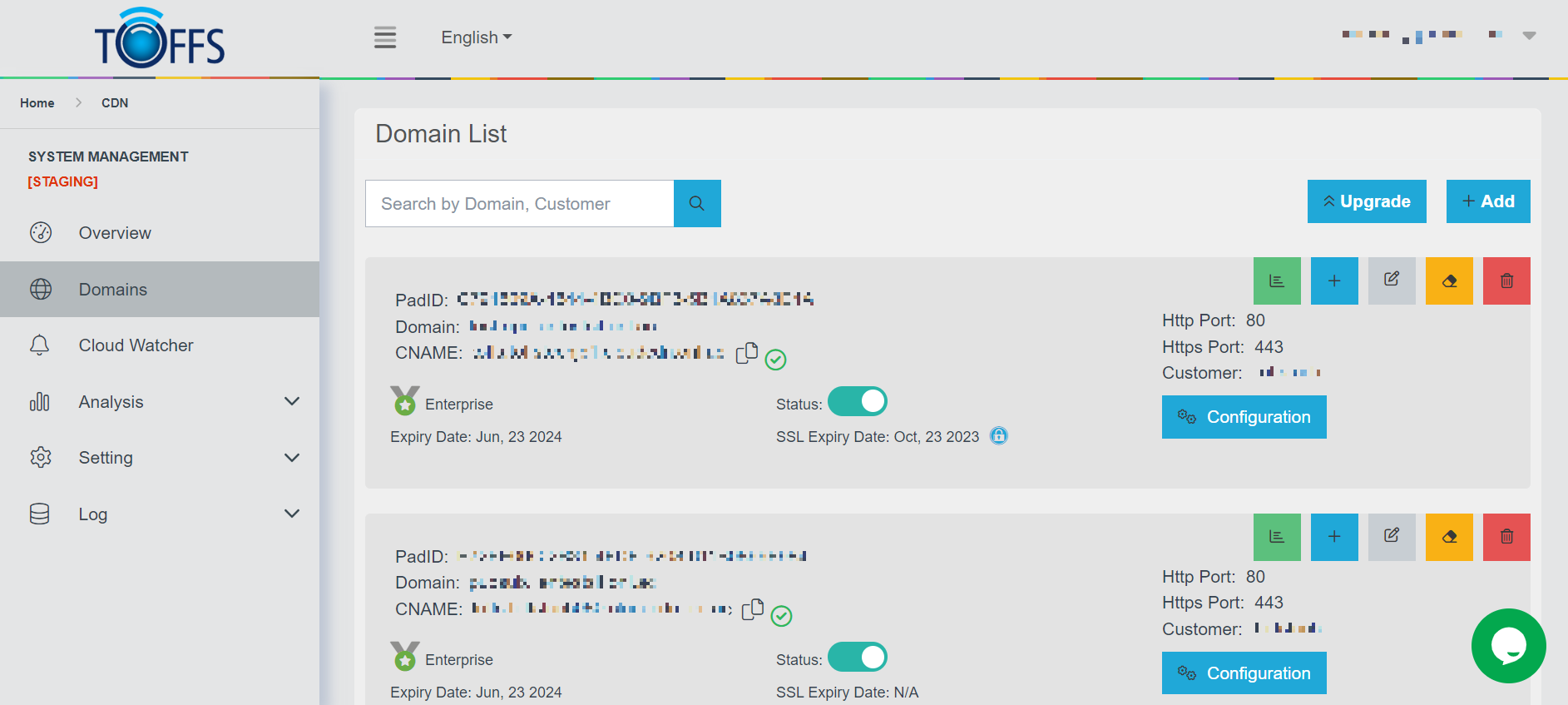 Figure 36
This is the “Domains” page. This page provides an overview of the domains associated with your account.
View Domains: Here, you can see a list of domains that have been added under your account.
Search: Use the “Search” function to quickly find a specific domain you want to view
Upgrade: Click the “Upgrade” button to switch to a different plan if you wish.
+Add Domains: The “+Add” button enables you to include additional domains in your account based on the purchased plan.
Realtime Report: By clicking the “Realtime Report” button, you can instantly access the Realtime Report page.
Add Domain to Multi CDN: Utilize the “Add Domain to Multi CDN” button to add the current domain to Multiple CDN.
Edit Domain Settings: The “Edit” button allows you to modify a domain’s general settings, such as HTTP Port, HTTPS Port and Customer belongs to this domain.
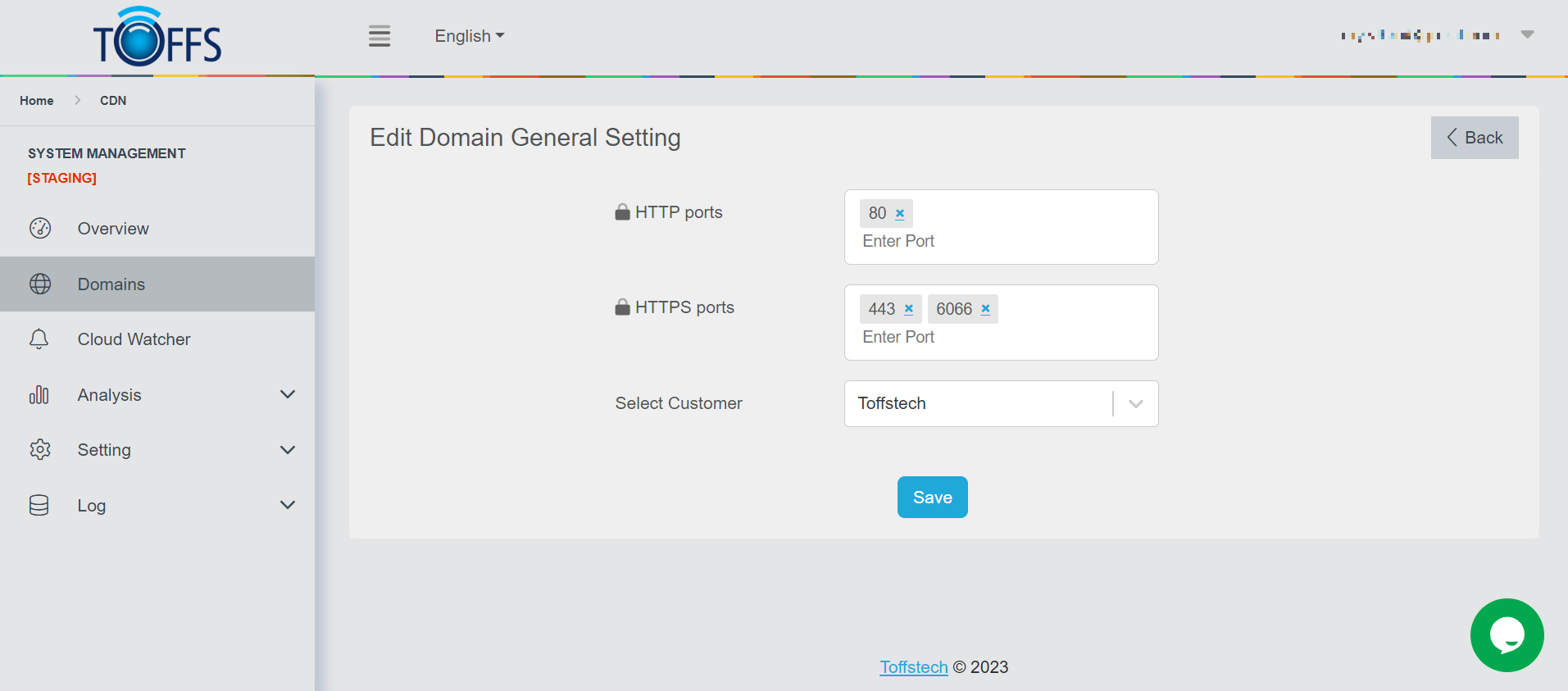 Figure 37
-
HTTP Port: This port is used when accessing the website with the HTTP protocol. It cannot be set to 443.
-
HTTPS Port: This port is used when accessing the website with the HTTPS protocol. It cannot be set to 80.
(Please remember to press the “Enter” button after inputting multi ports in the designated box.)
Click the “Save” button to save the configuration once you’re done.
If the ports you need differ from 80 or 443, follow these steps:
For example, to add the port 6066 for HTTPS:
- Enter the value 6066 in the HTTPS ports field.
- Click “Save”.
- Wait a few minutes for the changes to take effect.
- Access the website with the URI as: https://exampledomain.com:6066
Clear Cache: Use the “Clear Cache” button to purge all cached files.
Delete: The “Delete” button lets you remove a domain from your account.
Let’s Check: Clicking “Let’s Check” allows you to verify if this domain’s CNAME configuration correctly points to the specified CNAME. If it does, the “Let’s Check” button will turn into an “Active” symbol.
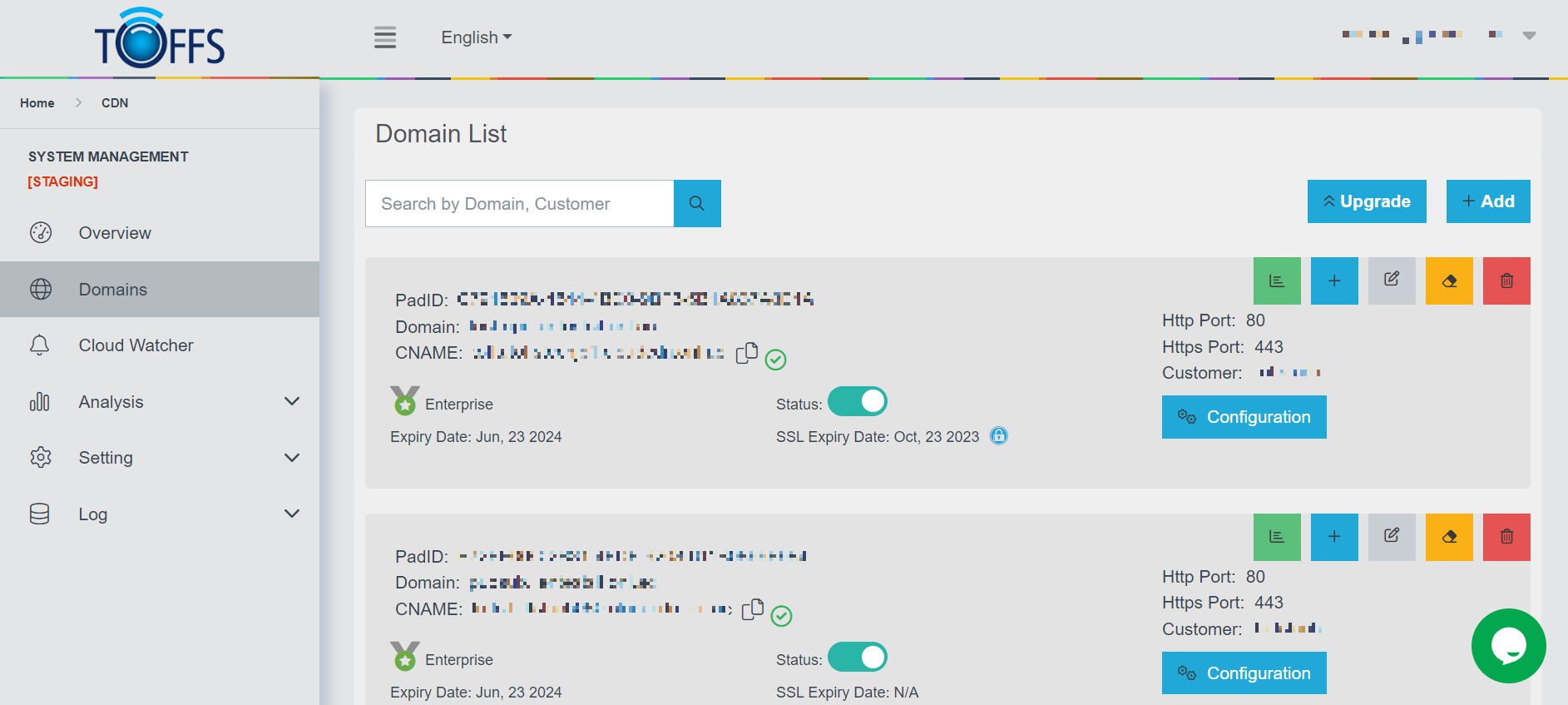 Figure 38
Configuration: The “Configuration” function is used to manage your domain with various settings available on the “Configuration” page.
Please contact Toffs Security Operation Center for assistance if you encounter any issues.