
API Gateway
API Gateway
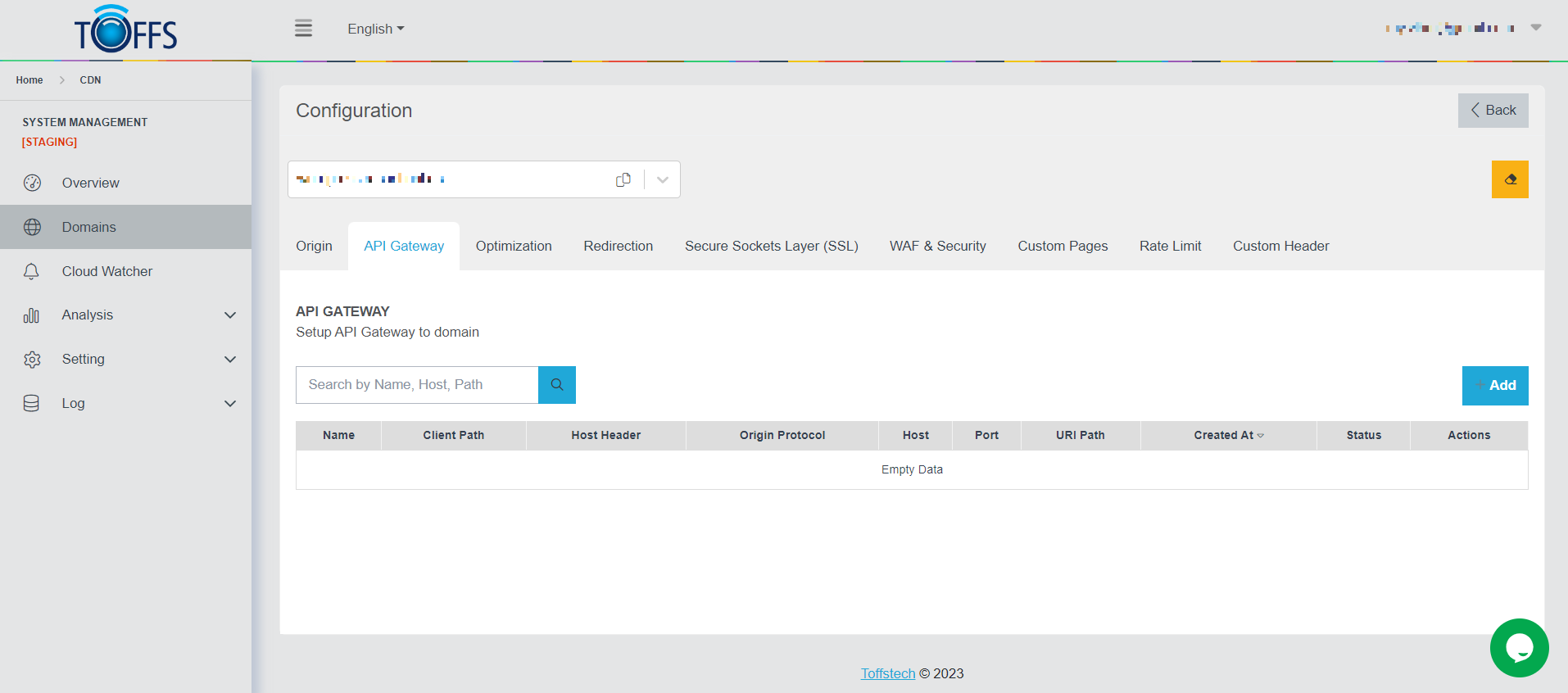 Figure 48
This is the “API Gateway” page under the “Configuration” page.
The API Gateway plays a vital role in distributed and service-oriented architectures (SOA) as it facilitates the management and direction of Application Programming Interfaces (APIs) within a system. Serving as an intermediary gateway, it bridges the gap between clients and services in the system.
By offering a unified access point, the API Gateway enables clients to interact with various services seamlessly. Rather than making direct calls to individual APIs, clients can simply direct their requests to the API Gateway, which efficiently handles the routing and coordination of these requests.
Follow these easy steps to set up an API Gateway to a domain:
- Go to CDN > Domains > Configuration > API Gateway in your dashboard.
- Click the “+Add” button to start the setup process.
- Provide a clear and descriptive name for the custom cache in the designated “Name” field.
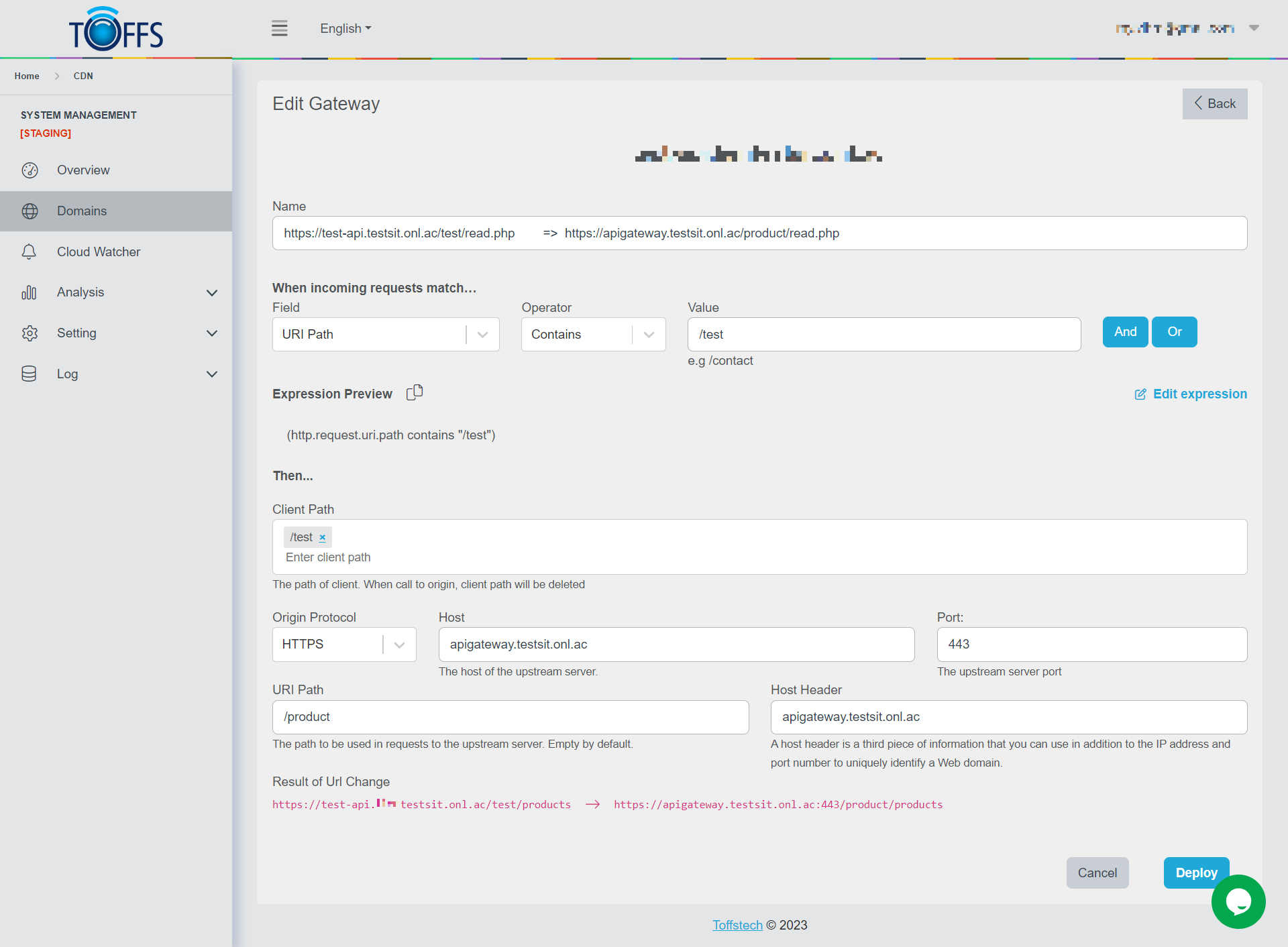
- Define the rule expression under the “When incoming requests match” section. Select an HTTP property from the Field drop-down list. The value of this property in each request will be compared to the specified Value using the chosen Operator.
- In the “Then” section, select either HTTP or HTTPS for the Origin Protocol. Enter the Host, Ports, URI Path and Host Header details.
- To save and deploy your rule, click on the “Deploy” button. If you are not ready to deploy yet, you can select “Save as Draft” to save your progress.
Some useful tips and notes:
- You can use the “And”/”Or” button to set up more complex configurations if needed.
- The Expression Preview section provides an overview of your expression. If you wish to make changes, click on the “Edit expression” button.
- You have the option to set the priority for each item in the Custom Cache section.
- The priority of the Cache will follow this order: Custom Cache > Cache Configuration.
Now, let’s understand how it works:
When such a condition is met, the content displayed will be adjusted to match the original URI, as demonstrated in the “Result of URL Change” example. The primary purpose of URL rewriting is to replace the Client Path with the Origin Path, and the flexibility allows for multiple values to be entered. The Client Path begins from the domain and port, providing a powerful tool for customizing URL behavior.
Here’s an example:
For instance, if you access “https://exampledomain.com/client-path/xyz?ver=1.1” the URI will remain unchanged, and the content displayed will be identical to “https://origindomain.com:port/origin-uripath/xyz?ver=1.1”.
Please contact Toffs Security Operation Center for assistance if you encounter any issues.