
Add Domain to MultiCDN
Add Domain to MultiCDN
In this tutorial, we will walk you through two methods to add a domain to MultiCDN. Follow the step-by-step instructions below to get started:
Method 1: Using the “Add Domain to MultiCDN” button on the Domain page.
Step 1: Access the Domain List page
First, navigate to the CDN page and select the “Domain” option to access the Domain List page.
Step 2: Click the “Add Domain to MultiCDN” button
-
On the Domain List page, locate the domain you want to add to MultiCDN.
-
Click the “Add Domain to MultiCDN” (“+” icon) button corresponding to the domain.

Figure 250
Step 3: Enter domain details
- You will be redirected to the Multiple CDN page.
- Enter the domain you have just added to MultiCDN.
- The system will display details of the domain, including the MultiCDN CName.
- Then click “View” symbol or “Edit” symbol to see or update the details.
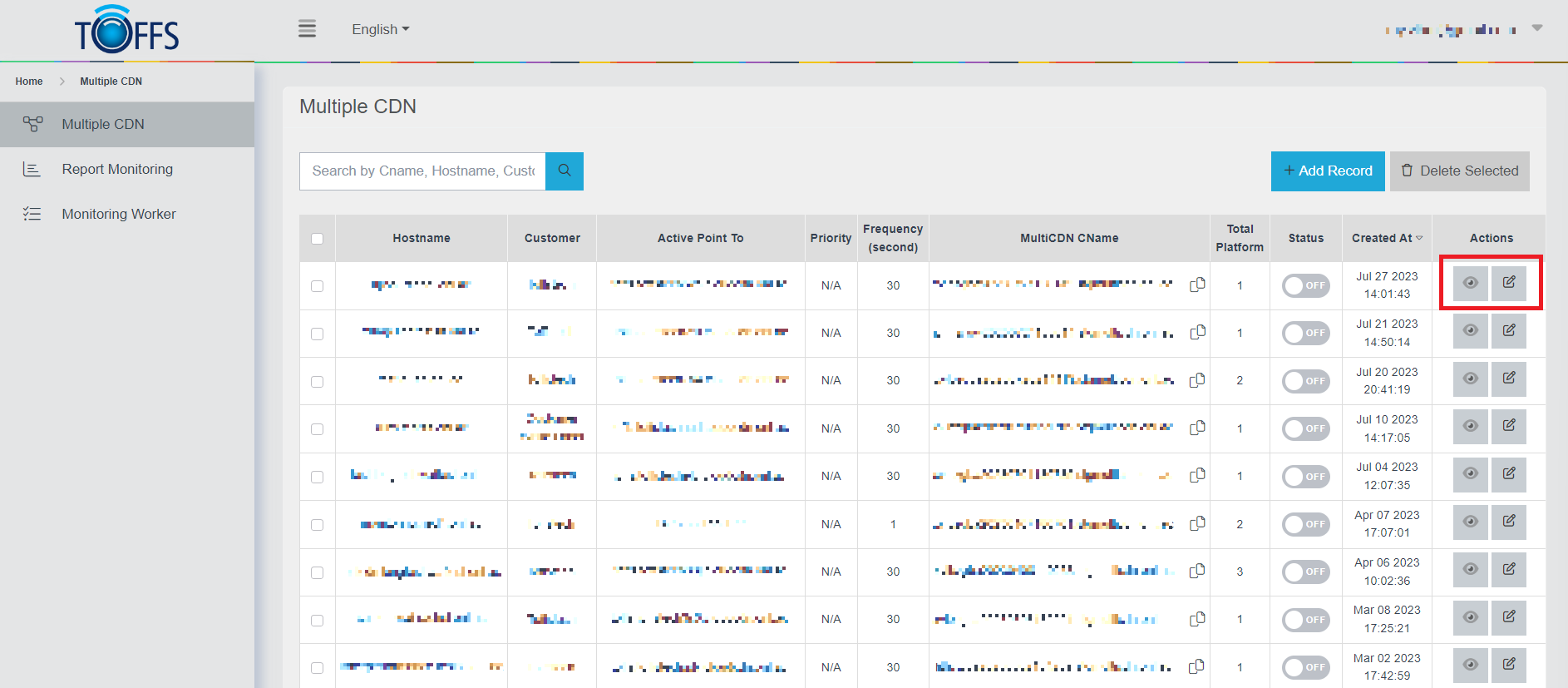
Figure 251
Step 4: Point the domain to MultiCDN CName
Finally, update your domain’s DNS settings to point it to the MultiCDN CName provided.
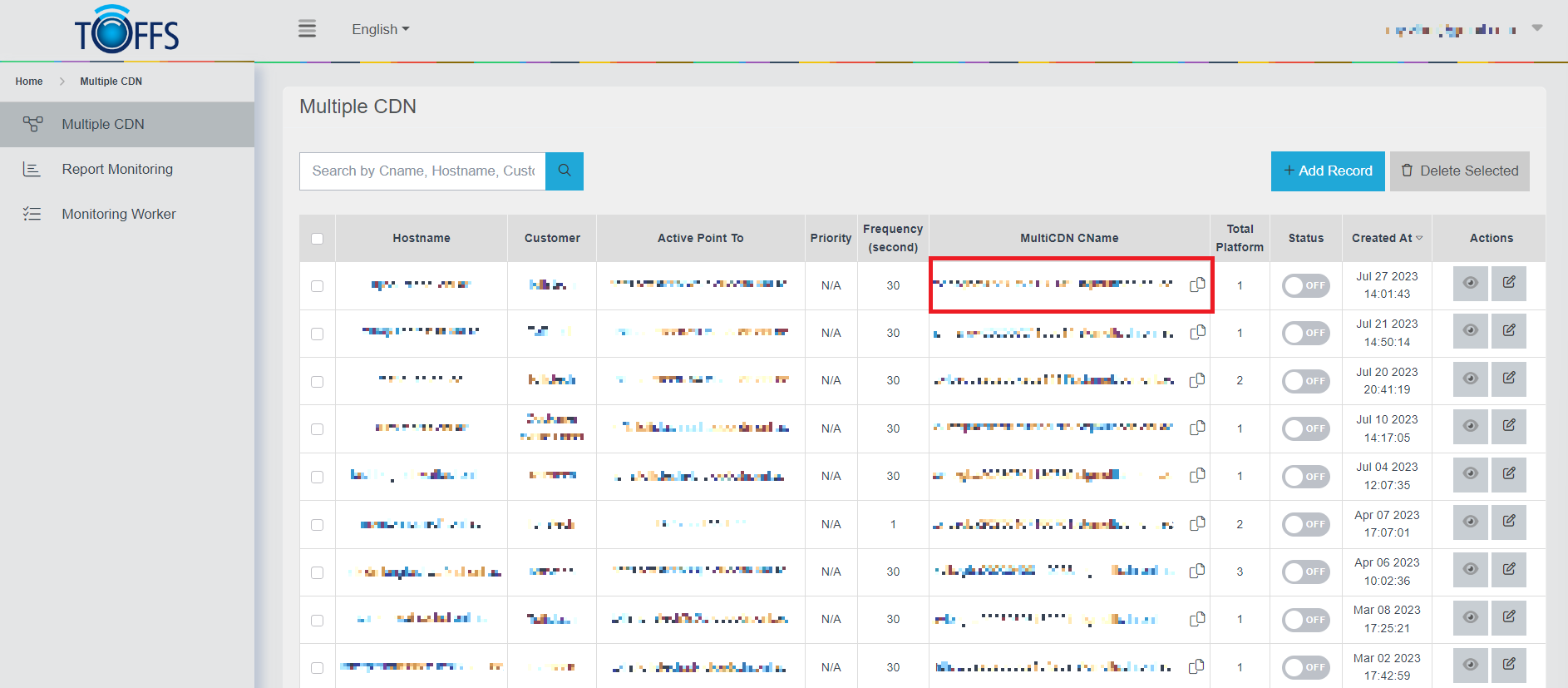
Figure 252
This step finalizes the process of adding your domain to MultiCDN.
Method 2: Directly add the domain in MultiCDN page.
Step 1: Click the “+Add Record” button
- Start by going to the Multiple CDN page.
- Click the “+Add Record” button to begin adding a new domain.
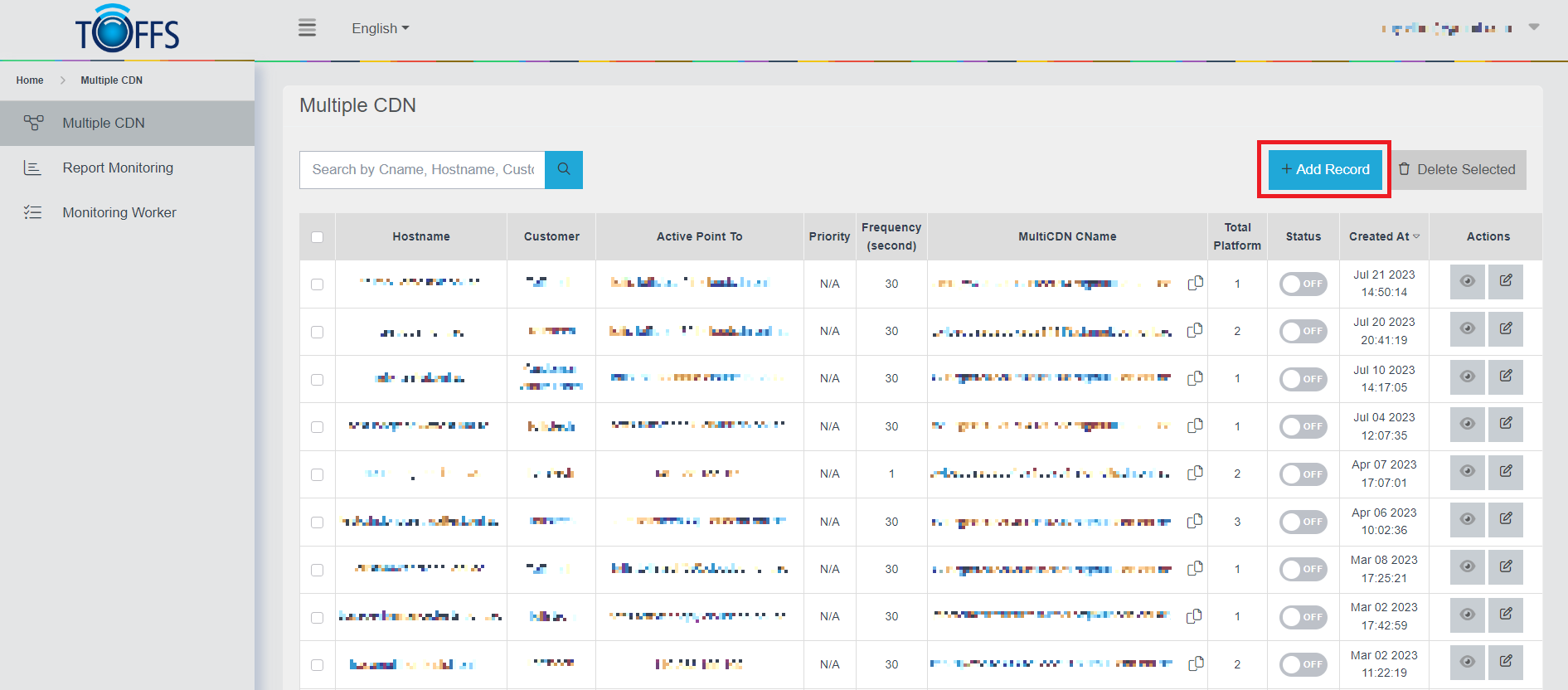
Figure 253
Step 2: Fill in domain details
In the “Add Multiple CDN” page, follow these steps:
- Select the appropriate customer.
- Enter the hostname (domain) you wish to add.
- In the “All Failed Platform” field, enter the IP origin of the domain.
- In the “Active Platform” field, provide a valid domain name, IPv4 or IPv6 address. By default, this platform is active. (Our C4 CName)
- Optionally, you can click the “+Add Backup Platform” button again to add another Backup Platform. (Another Provider CName such as Cloudflrare)
- Once all the details are filled, click “Submit” to finish the process.
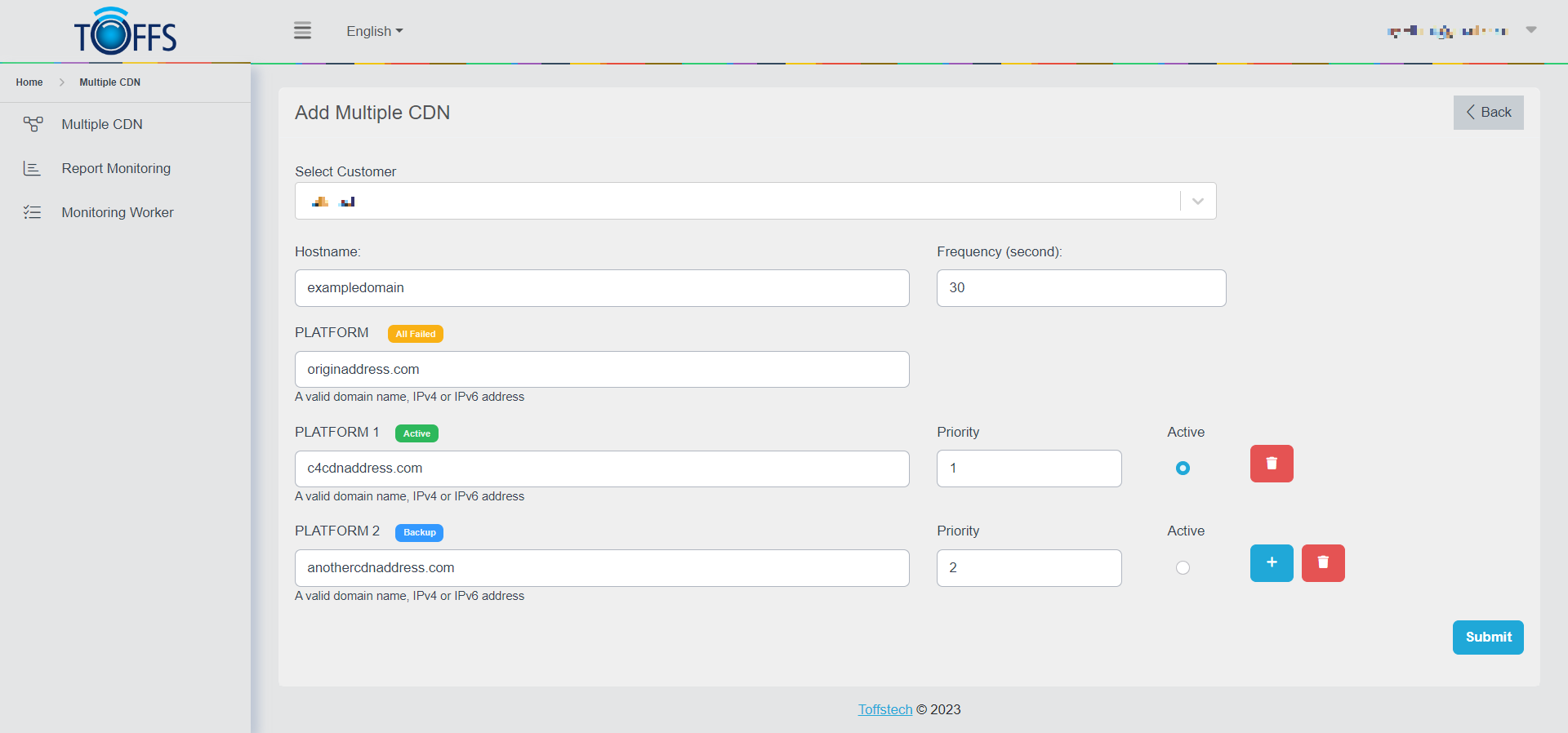
Figure 254
You have successfully added your domain to MultiCDN using either of the two methods. Your domain is now integrated with MultiCDN and ready to enhance its performance and reliability. If you encounter any issues or have further questions, don’t hesitate to reach out to our support team for assistance.
Please contact Toffs Security Operation Center for assistance if you encounter any issues.