
All Failed Feature
All Failed Feature
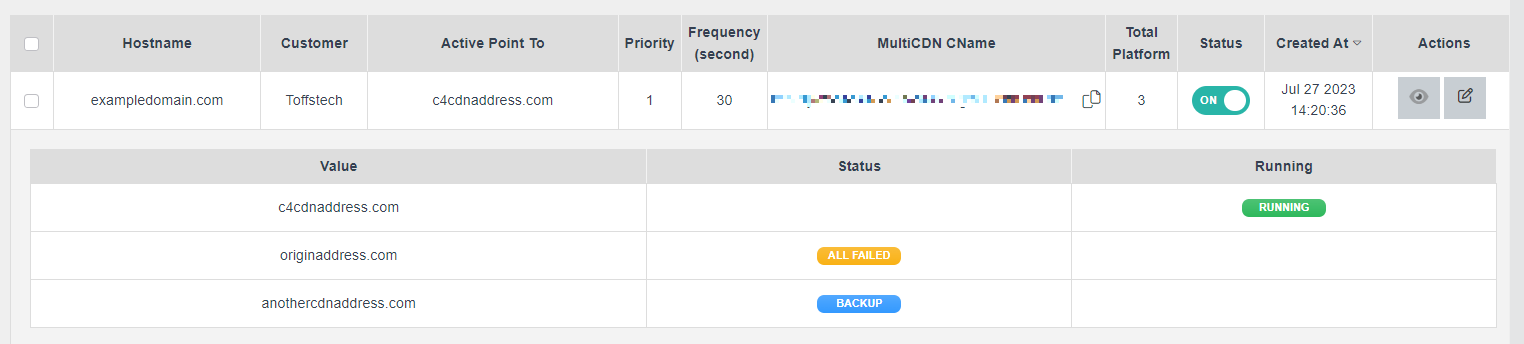
Figure 255
How to Monitor and Handle Multi-CDN Status?
In this section, we’ll learn about the Multi-CDN status monitoring system used by Toffs Technologies Support Team. The system displays a status called “All Failed” when it detects that all the Multi-CDN platform is not running. This feature allows prompt notification to the Technical Support Team, enabling them to assist users efficiently.
Understanding the “Running” Status: When the Multi-CDN platform is marked as “Running”, the system regularly checks its status during its operation to ensure smooth functioning.
Dealing with Platform Failure: If the Multi-CDN platform is not running, the system will conduct three additional checks. If, after these checks, the platform is still not running, the system will switch the status to “Failed”. At this point, the system will automatically switch to another platform that has a “Backup” status.
Activating the Backup Platform: Once the system switches to the “Backup” Platform, it will verify if it is “Running”. If the “Backup” Platform is operational, the system will use it and update its status to “Running”.
Handling Persistent Failure: If the “Backup” Platform is also not running, the system will switch to a special platform called “All Failed”. Additionally, an alert email will be sent to the Technical Supporters, notifying them of the issue.
Restoring Normal Operation: To resolve the “All Failed” status and restore normal operations, the Technical Supporters can follow these steps:
- Click on the “Edit” button to access the Platform settings.
- Press the “Check” symbol button to activate the Platform manually.
By following these guidelines, the Toffs Technologies Support Team can efficiently monitor and manage the status of Multi-CDN platforms, ensuring a seamless experience for users.
How to Check Platform Status Using Postman
In this section, we will learn how to use Postman to check the status of a platform by sending a GET request to its domain. By following these simple steps, you can determine whether the platform is available or experiencing any issues.
Step 1: Enter a Multiple Platform CNAME of the Domain
- Open Postman and create a new request.
- In the request line, select GET as the request type.
- Enter the address of the Multiple Platform in the address field.
Step 2: Enter the Host Name
- Locate the “Host” line in Postman.
- Enter the Host name of the domain in the designated field. This helps ensure that the request is directed to the correct server.
Step 3: Send the Request Once you have entered the IP and Host information, click on the “Send” button in Postman to execute the request.
Interpreting the Results:
Status Code:
After sending the request, you will receive a response from the platform’s server. The response will include a “Status Code,” which indicates the status of the platform.
-
If the Status Code starts with 5 (e.g., 500, 503), it indicates a server error. This means the platform is down or has failed to respond properly. In this case, the platform is unavailable.
-
If the Status Code is less than 500 (e.g., 200, 404), it means the request was successful, and the platform is available to serve responses. This indicates that the platform is up and running correctly.
Using Postman to check the platform’s status is a quick and straightforward process. By following the steps outlined in this tutorial, you can easily determine whether the platform is available or experiencing any issues based on the Status Code received in the response.
Please contact Toffs Security Operation Center for assistance if you encounter any issues.