
Free SSL Certificate Management
Free SSL Certificate Management
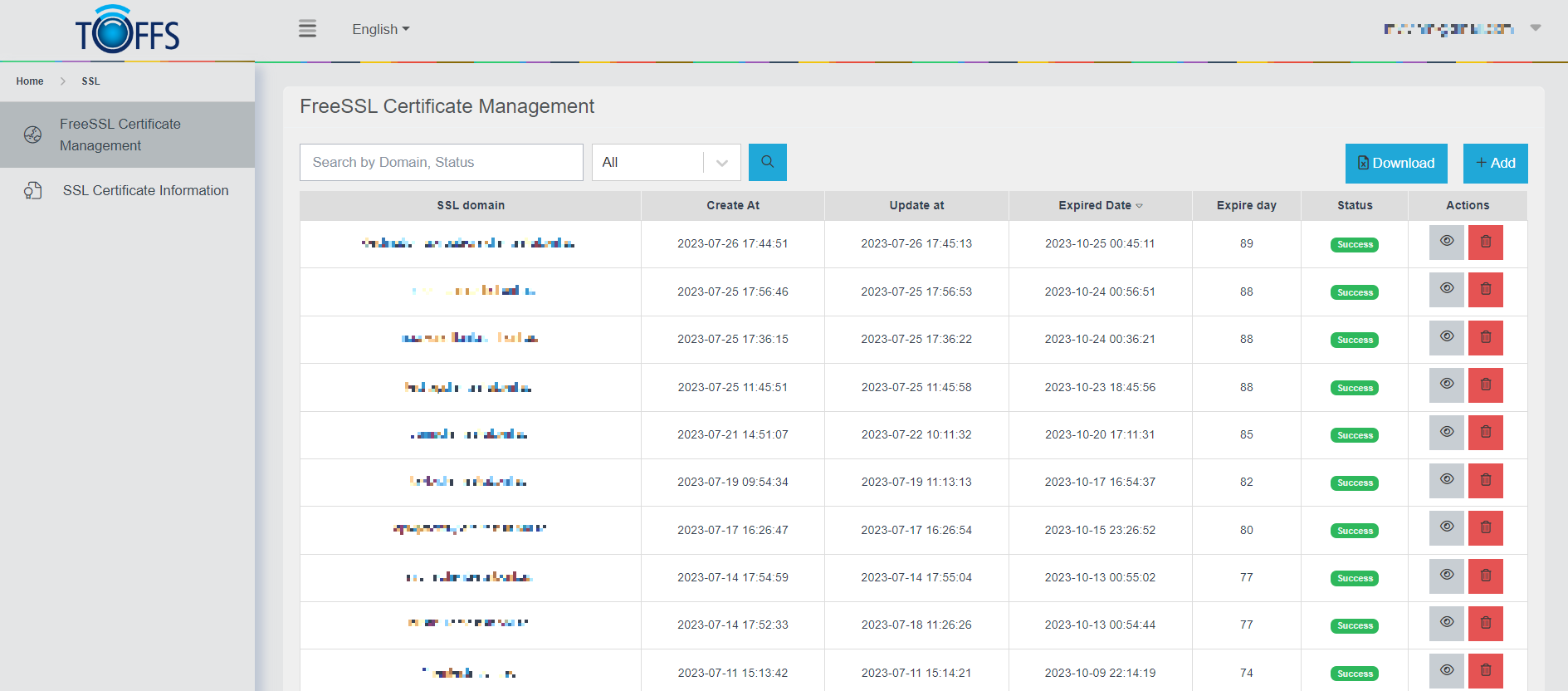 Figure 273 - List of domain that is managed by SSL Management
This is the “SSL Management” page used for Toffs Technologies Support Team.
The SSL Management page provides a comprehensive view of all domains that have been equipped with free SSL certificates. You can easily track the domain’s creation date, expiration day, and its current status.
Functionalities:
Adding a Free SSL Certificate: To add a free SSL certificate for a domain, click on the “+Add” button. This function facilitates the seamless integration of SSL security for the selected domain.
Viewing SSL History: By clicking on the “View” button, you can access the free SSL history of the domain. Additionally, you have the option to download the SSL key and certificate for your records.
Deleting a Domain: If required, you can remove a domain from the SSL Management page by using the “Delete” button.
Automatic SSL Renewal: The SSL Management system offers automated SSL certificate renewal for domains that have opted for the “Free SSL” from Toffs CDN. When the domain is configured to use the Toffs CDN’s Secure Sockets Layer, SSL Management will take charge of monitoring the SSL certificate’s validity. It automatically checks for certificate expiration, as well as pre-expiration (7 days before the expiry date). If necessary, the SSL will be renewed, and the updated certificate will be automatically applied to Toffs CDN.
Requirements for Automatic Renewal: For automatic SSL renewal to function effectively, the domain must be pointed to Toffs CDN. Without this configuration, SSL Management will not be able to renew the SSL certificate.
SSL Certificate Generation: SSL Management employs the HTTP Challenge method to register new certificates with Let’s Encrypt, ensuring secure and reliable SSL certificate generation.
Important Notes:
-
SSL Certificates can only be generated for domains that utilize Port 80 (HTTP) and Port 443 (HTTPS).
-
Every day at 00:00 Singapore time, the system performs a recheck on SSL certificates with statuses labeled as “Failure,” “Pending,” and “Expired”. This recheck applies specifically to SSL certificates generated from C4.
With this tutorial, you should now have a clear understanding of how to effectively manage SSL certificates using the SSL Management page for Toffs Technologies Support Team
Fixing SSL Bug When Generating C4 SSL After Creating SSL by Text
Issue: Some users have encountered a bug when attempting to generate C4 SSL after creating SSL by text. This bug hinders the successful generation of the C4 SSL certificate, causing inconvenience to the users.
 Figure 275
Solution:
Step 1: Removing the SSL of the Affected Domain from SSL Management
To begin the bug-fixing process, we need to delete the SSL certificate associated with the affected domain from the SSL Management section. Follow the steps below to do this:
- In SSL Management module, access the Free SSL Certificate Management
- Locate the SSL certificate linked to the domain experiencing the bug.
- Select the option to “Delete” icon button to remove the SSL certificate.
Step 2: Re-generating SSL Certificate in CDN
After successfully removing the SSL certificate for the affected domain, the next step is to re-generate the SSL certificate in the CDN (Content Delivery Network). Proceed as follows:
- Access your CDN dashboard
- Navigate to the Secure Sockets Layer (SSL) (CDN > Domains> Configuration > Secure Sockets Layer (SSL))
- In Allow HTTPS section, click the toggle to enable this feature
- Continue to click on “Generate SSL Certificate”
By following these two steps, you should resolve the SSL bug encountered during C4 SSL generation after creating SSL by text. Your website should now have a properly functioning SSL certificate, ensuring secure and encrypted communication between users and your server.
Status description
In the context of SSL certificate management, various statuses can be assigned to a domain and its associated SSL certificate. These statuses provide valuable information about the current state of the certificate. Below are the different status descriptions and their meanings:
Success: Description: The domain is valid, and the SSL certificate has been successfully created and is active.
Pending: Description: An SSL certificate has been generated for the domain, but it is currently awaiting verification. Verification is necessary to confirm the domain’s ownership before the certificate can be activated.
Failure: Description: The domain is encountering issues with the verify token, which means it has not been pointed to the CNAME (Canonical Name) of the Content Delivery Network (CDN) yet. This prevents the SSL certificate from being successfully activated.
Discard: Description: The domain does not exist in the system. This status indicates that the SSL certificate cannot be associated with a non-existent domain.
Expired: Description: The SSL certificate has reached its expiration date and is no longer valid for secure communication. Renewal or replacement is necessary to maintain a secure connection.
Emergency: Description: An error occurred during the upload of the SSL certificate’s key and certificate to the C4 system. This status indicates a critical problem that requires immediate attention and resolution.
By understanding these SSL certificate status descriptions, you can easily identify and address any issues that may arise during certificate management. Monitoring and maintaining SSL certificates regularly is crucial to ensuring the security and proper functioning of your online services.
Please contact Toffs Security Operation Center for assistance if you encounter any issues.