
SSL Certificates Information
SSL Certificates Information
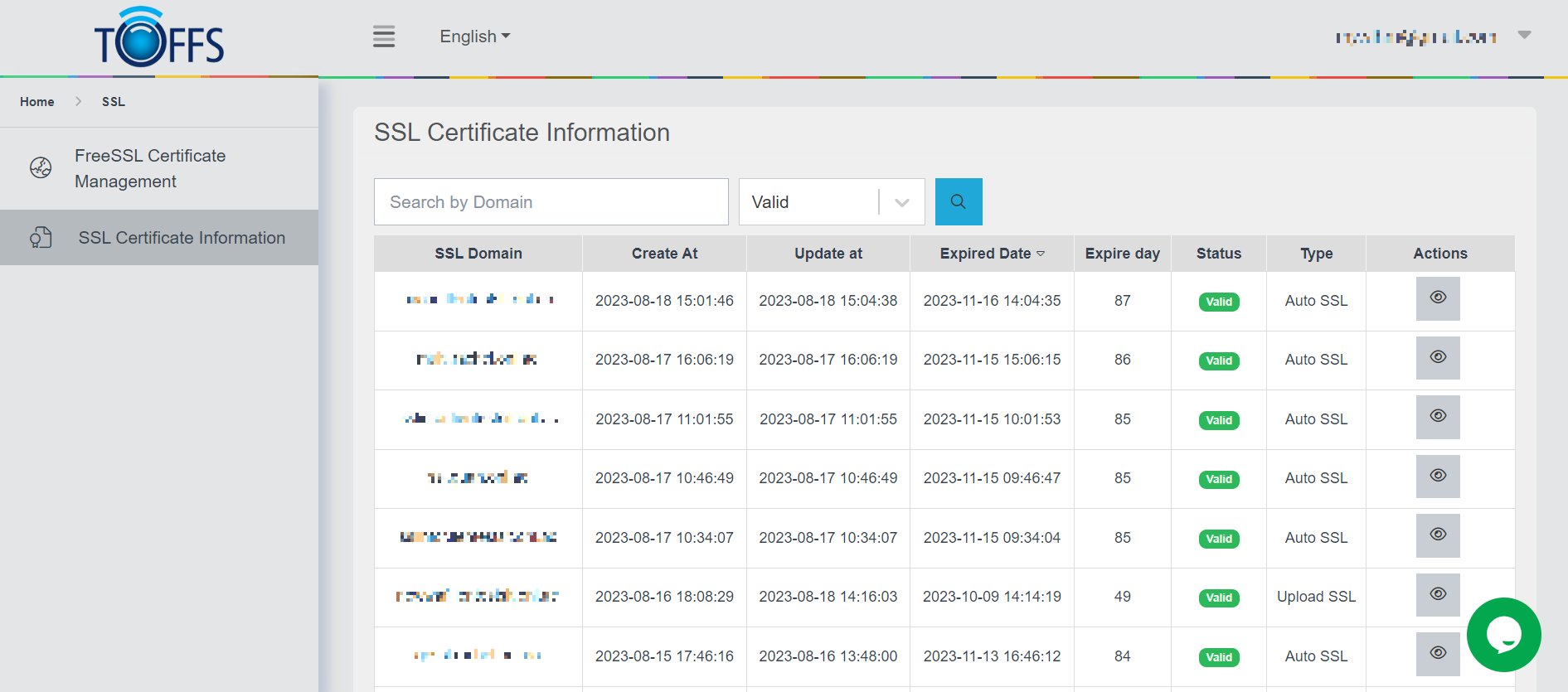 Figure 276
The “SSL Certificate Information” page serves as a vital resource within the framework of Toffs Technologies Support Team. Designed to cater to a spectrum of domains, this page presents a comprehensive array of SSL (Secure Sockets Layer) Certificate Information. The SSL certificates play a pivotal role in ensuring the security and confidentiality of data transmission across these domains. Within this page, users can glean a wealth of information, each facet contributing to a holistic understanding of the SSL certificates’ lifecycle and status.
SSL Domain: This field elucidates the specific domain for which the SSL certificate is applicable. It serves as a direct link to the corresponding digital territory where encrypted communication is paramount.
Create At: This timestamp illuminates the moment when the SSL Certificate was initially generated. It encapsulates the exact instant in time when the certificate’s cryptographic structure was formed and set in motion. Additionally, it also highlights any subsequent updates to the certificate, reflecting a historical timeline of changes made.
Update At: This timestamp serves as a testament to the dynamism of SSL certificates. It signifies the instances when the SSL Certificate was automatically updated, a strategic maneuver aimed at maintaining the certificate’s integrity and validity. This update occurs preemptively, before the certificate reaches its expiration date, ensuring a seamless transition and uninterrupted security coverage.
Expired Date: This chronological marker underscores the date on which the SSL Certificate’s effectiveness concludes. It represents the culmination of a defined period during which the certificate could be trusted to secure data exchanges. Beyond this date, the certificate’s encryption capabilities are no longer guaranteed, emphasizing the necessity of timely renewal.
Expire Day: This attribute provides a concise quantification of the remaining days until the SSL Certificate’s expiration. It acts as a countdown, offering a clear indicator of the temporal proximity to the certificate’s end-of-life, prompting timely action for renewal.
Status: The status field offers insights into the current state of the SSL Certificate. It provides information on whether the certificate is active, expired, or in any other condition that might require attention. This insight is invaluable in ensuring the continuous protection of sensitive data.
Type: This field delineates the mode of SSL certificate provisioning. It categorizes SSL certificates into two distinct types: “Auto SSL” and “Upload SSL.” “Auto SSL” signifies certificates that are automatically generated and managed by our website. These certificates are typically issued by an automated process, often tied to the hosting environment. On the other hand, “Upload SSL” designates certificates that are manually obtained and integrated into the website’s infrastructure. This differentiation provides a deeper understanding of how SSL certificates are procured and maintained within the digital ecosystem.
Search by Domain: You can easily find SSL Certificate Information for a specific domain by entering the domain name in the “Search by Domain” field.
Status Filter: The “Status” filter helps you to categorize SSL Certificates based on their current status. Here are the available options:
-
All: This option displays all the SSL Certificates, regardless of their status.
-
Expired: When an SSL certificate has expired, its status will appear in Red, and the “Expire Day” will be indicated as N/A in Red as well.
-
Valid: If an SSL certificate is still valid, its status will appear in Green.
-
7 days: This option shows SSL certificates that are valid for the next 7 days. The status will be displayed in Green, and the “Expire Day” will appear in Red.
-
30 days: SSL certificates that are valid for the next 30 days will be displayed here. Their status will be shown in Green, and the “Expire Day” will also appear in Green.
View SSL Detail feature: The “View” feature in the SSL Certificate Information page, which allows you to access and download SSL certificates that have been generated or updated in the CDN (Content Delivery Network). This feature provides a convenient way to manage and obtain SSL certificates for your domains.
Step 1: Access the SSL Certificate Information Page
Step 2: Locate the “View” Button Look for the “View” button next to each domain or website entry. This button is used to access detailed information about the SSL certificates associated with the selected domain.
Step 3: Viewing SSL Certificates
- Click on the “View” button next to the domain for which you want to access SSL certificate information.
- A new section will appear, displaying a list of SSL certificates that have been generated or updated for that specific domain.
- This list might include information such as Create At (Time), Expired Date, Status, and Type (of SSL).
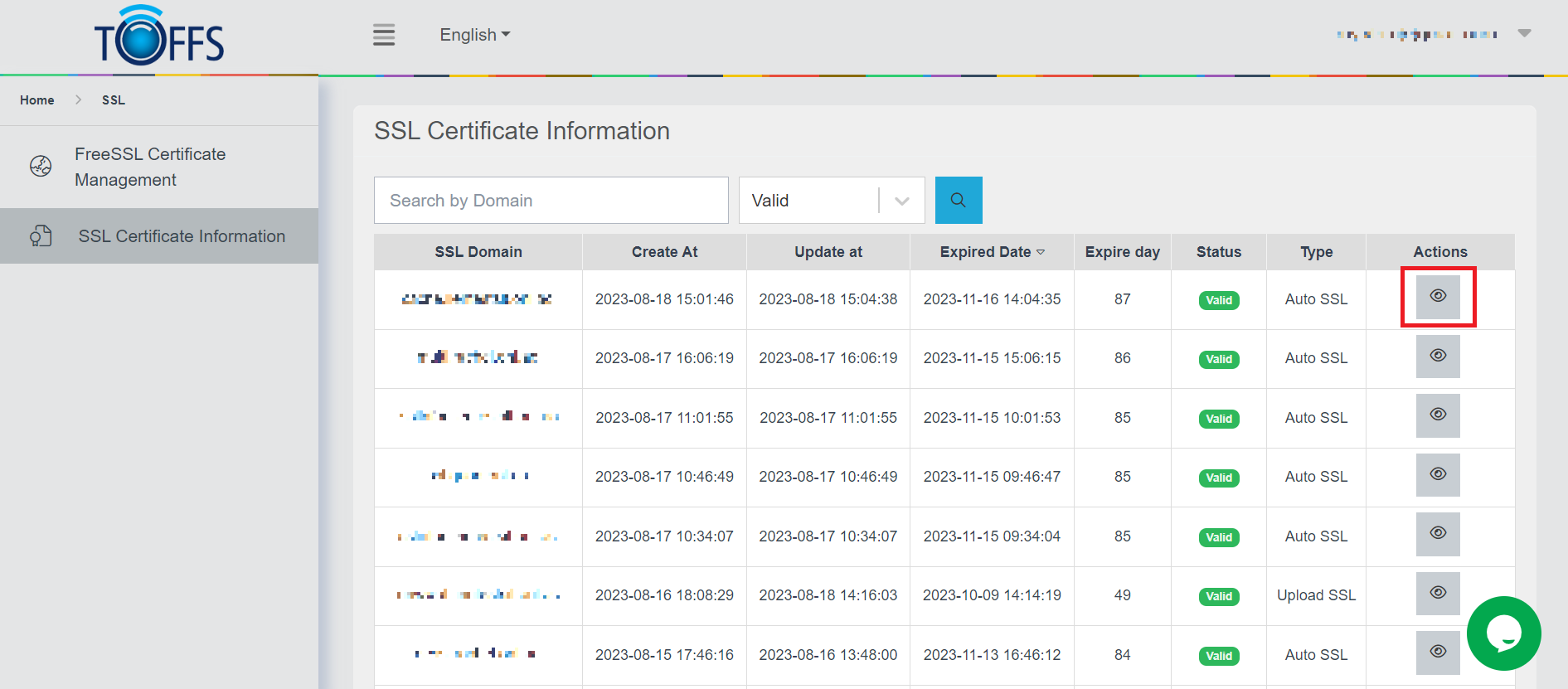 Figure 277
Step 4: Downloading SSL Certificates
- In the list of SSL certificates, locate the certificate you want to download.
- Next to the certificate information, you should see a “Download” icon button.
- Click on the “Download” icon button associated with the desired SSL certificate.
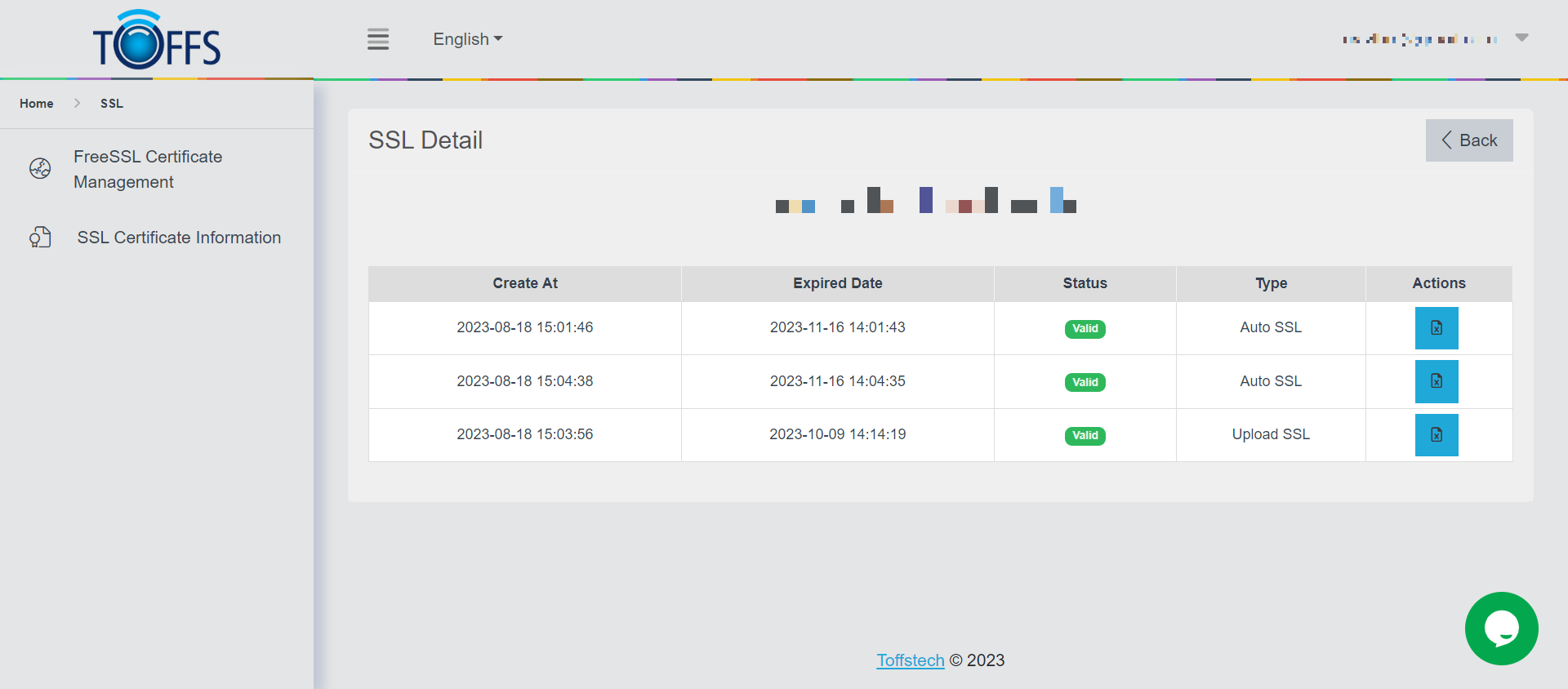 Figure 278
Step 5: Save the SSL Certificate
- After clicking the “Download” icon, a file download dialog will appear in your browser.
- Choose a location on your computer where you want to save the SSL certificate file.
- Optionally, you can rename the file to something descriptive for easier identification later.
- Click the “Save” button to start the download process.
Step 6: Accessing the Downloaded Certificate
- Navigate to the directory where you saved the downloaded SSL certificate.
- The certificate file will typically have a “.crt” and “.key” file extension.
- You can use this certificate for various purposes, such as installing it on your web server or using it in other services.
Note: Only SSL certificates for domains that have been updated after this feature’s publication will be displayed and allow to download with all details (base on Update at column). SSL certificates generated or updated before this feature’s release will not be shown in details.
Please contact Toffs Security Operation Center for assistance if you encounter any issues.