
Add Alerts
Add Alerts
Performance monitoring alerts are crucial for promptly identifying and addressing issues before they impact your customers. This tutorial will guide you through the process of adding an alert for performance monitoring. Please follow these simple steps:
Step 1: Access the List Performance Monitoring Page
- Navigate to the** List Performance Monitoring page** where you can view all your performance monitoring items.
- Identify the specific item for which you want to add an alert and click on the “Edit” icon button next to it.
Step 2: Access the Edit Performance Page
- You will be directed to the Edit Performance page for the chosen item.
- Scroll down to locate the “Alerts” section and click on it.
- After clicking, the Alerts section will be displayed as shown below:
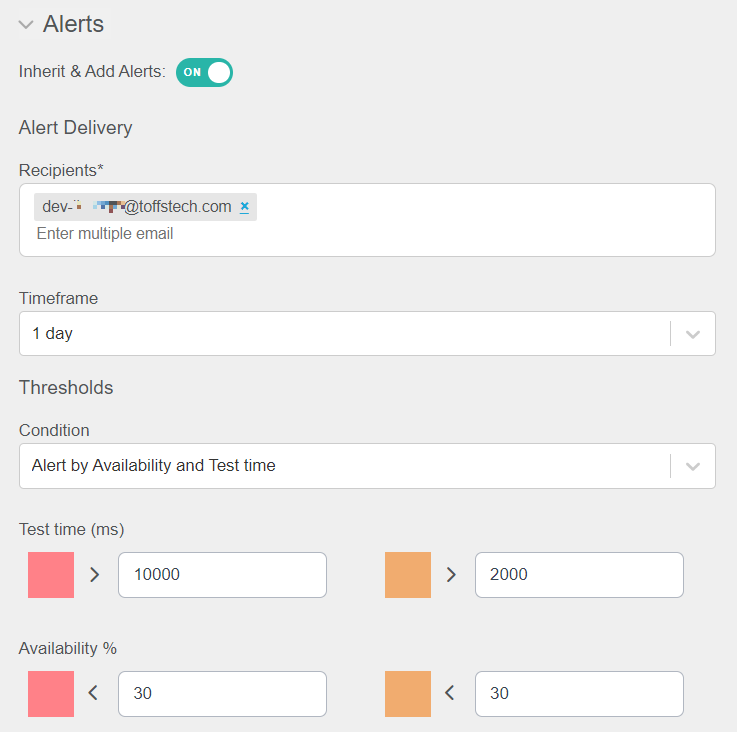
Figure 271
Step 3: Enable the Alert Function
In the Alerts section, find the option to the toggle named “Inherit & Alert” and turn it on. This enables the alert function for Performance Monitoring.
Step 4: Enter Alert Configuration Details
Proceed to enter the necessary information for the alert configuration:
- Recipients: Enter the email addresses of the individuals or groups who should receive the alert. You can add one or multiple email addresses.
- Timeframe: Select the desired timeframe value for the alert.
- Condition: Choose the type of condition for the alert (e.g., Alert by Availability or Test Time).
- Test Time: Enter the response time in milliseconds (ms) for triggering the alert.
- Availability: Enter the minimum required availability value in percentage (%) for triggering the alert.
Step 5: Save the Alert Configuration
Once you have entered all the necessary information, click the “Save” button to save the alert configuration.
Alert Logic and Email Sending:
Based on your configured conditions, the system will count and send email alerts as follows:
- If the website’s response time exceeds the Warning or Danger range, the system will send the respective email.
- If the website’s availability falls below the Warning or Danger range, the system will send the respective email.
- If the website’s response time and availability both meet the Warning or Danger range, the system will send the respective email.
- If the website’s values do not meet the Warning or Danger range for either response time or availability, the system will not send any email alerts.
Note: The alert function only works when the monitoring status is ON. If the monitoring status is OFF, the system cannot trigger and send alerts. Make sure the monitoring status is ON to ensure alert functionality
Please contact Toffs Security Operation Center for assistance if you encounter any issues.